
Printing from EME Lab Computers
This guide applies to all KGCOE academic labs and research areas with printers.
KGCOE EME uses the PaperCut Print Deploy Client to allow users to easily map new printers.
In our teaching labs, the printer in the lab should be automatically installed if you are a KGCOE faculty/staff member or student. Printer installation may take up to two minutes when logging into a computer for the first time. When installed correctly, the printer will appear in the printer selection screen with the room number in its name. Below is a list of our labs with printers:
| Lab | Printer Name |
| GLE-3100 | GLE-3100-PR01 |
| GLE-3170 |
GLE-3170-PR01 |
| GLE-3200 |
GLE-3200-PR01 |
| GLE-3259 |
GLE-3259-PR01 |
| GLE-3280 |
GLE-3280-PR01 |
Printing is not supported from personal devices.
Adding a printer
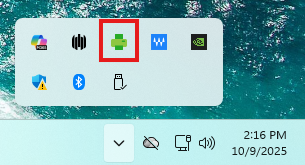
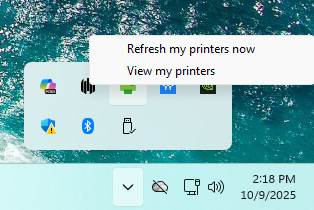
In research areas, you will need to manually add the printer if this is your first time printing. To use PaperCut Print Deploy, find the PaperCut icon in the system tray (see below). Right click and select "View My Printers"
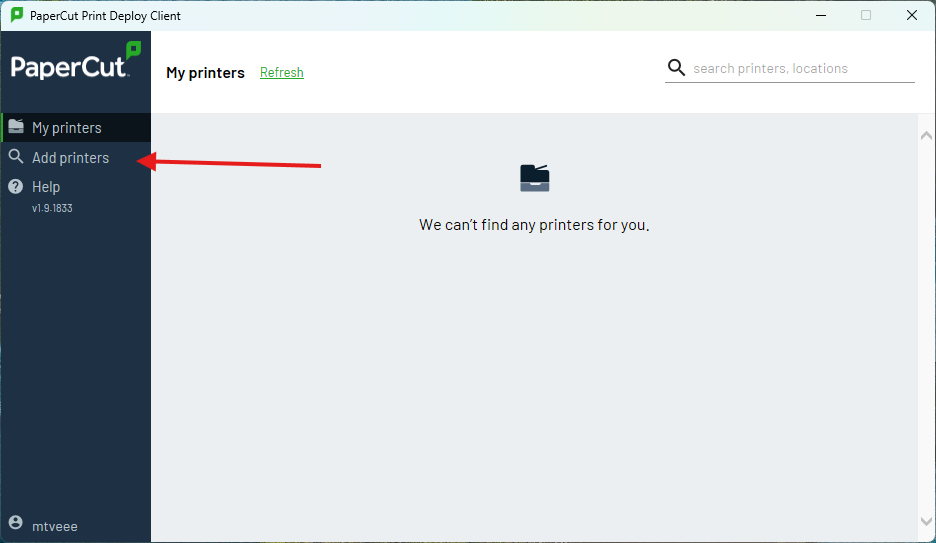
On the left-hand menu, select Add Printers:
Search for the printer, using the printers name, and click Install. If you are unsure of the printer's name, enter the room number:
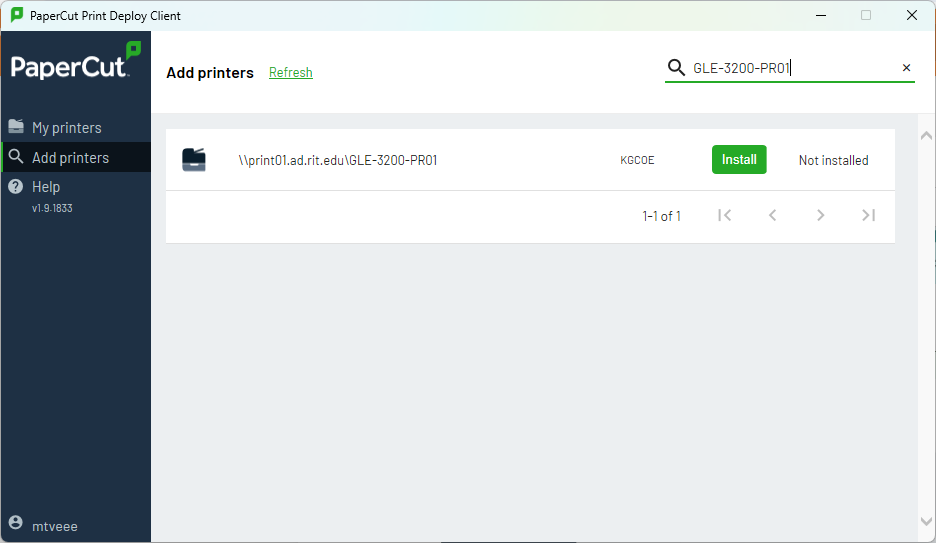
If you have permissions to use the printer, it will install momentarily. If you do not have access, it will fail.
In research labs, you must use a student employee account to map printers in those areas, as well as departmental Xerox copiers.
Need more help?
Please contact Mike Vasile, the EME Systems Administrator, if you are having issues using or installing printers.
Office: GLE-3032
Email: mtveee@rit.edu
Phone: 585-475-2768