
Connecting to your Research Desktop Remotely
This guide will go over how to connect to a EME Research Desktop using Remote Desktop Connection and, for Mac users, the Windows app.
Users will not automatically have remote access to their workstation, and must request access by contacting the EME Systems Administrator.
Remote Desktop Connection (Windows)
1. On Windows, open Remote Desktop Connection (mstsc) and click the Show Options button at the bottom of the window. This will expand the window and show the detailed session settings:
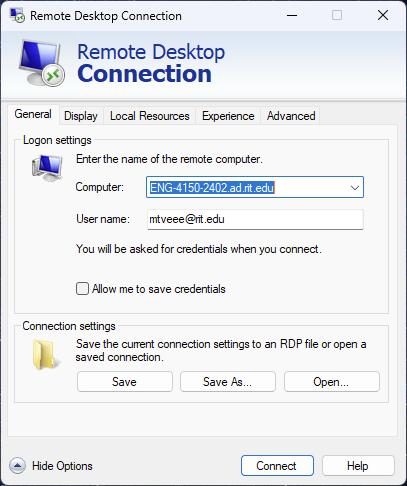
2. Under "Computer", enter the fully-qualified domain name of the machine the user wants to connect to, such as ENG-4150-2402.ad.rit.edu. For "User name", enter your RIT account (@rit.edu is required, see image above).
3. This next step is only for personal devices on or off campus, and RIT laptops that are off campus. You can skip over it if you are connecting from another RIT desktop.
Click on the Advanced tab. Under "Connect from anywhere", click "Settings". Ensure that the settings appear as you see below:
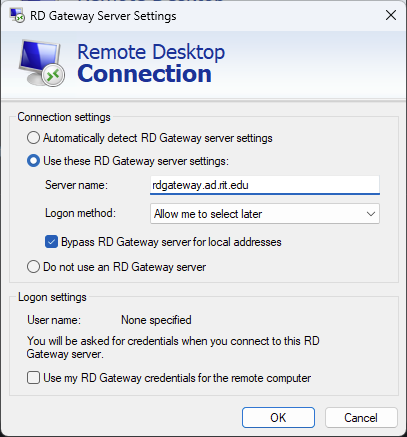
Once done, click "OK".
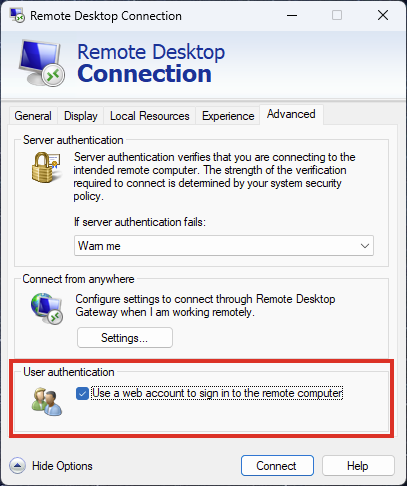
4. Ensure the "Use a web account to sign in to the remote computer" setting is checked, which is also under the Advanced tab:
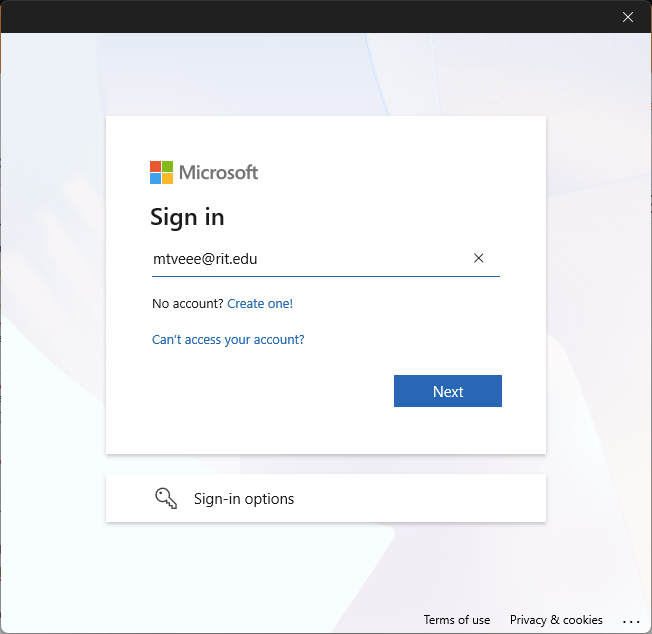
5. You can now either save this connection as an .RDP file to quickly launch it, or simply click "Connect". If successful, you will be prompted to enter your RIT credentials, and then be brought to a Microsoft log in page. Enter your credentials and follow the login flow (i.e. Duo prompt, etc.)
You will then be prompted if you want to allow a Remote Desktop connection to the destination machine. Click "Yes" to continue.
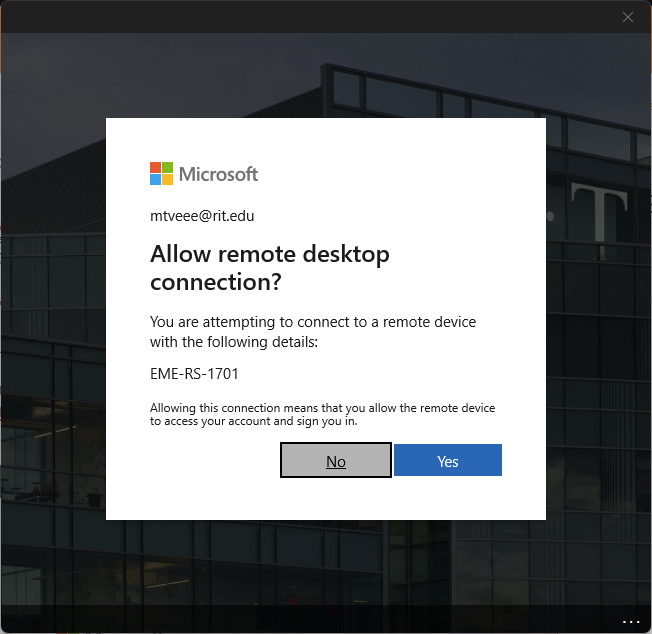
You should now be launched into a Remote Desktop session. Please reach out to Mike Vasile if you are having any issues connecting.
Windows App (MacOS)
The procedure starts with generating an .RDP file from the Windows Remote Desktop Connection application, and then exporting it to your Mac. Follow the procedure above, and then, go to the General tab, under "Connection settings", click "Save as..." to create an RDP file for the connection settings you entered. The RDP file can then be copied to the user's macOS device, and imported into Windows App.
On macOS, install the Windows App from the App Store, and open once completed. In the menu bar, click "Connections", and then "Import from RDP file..."
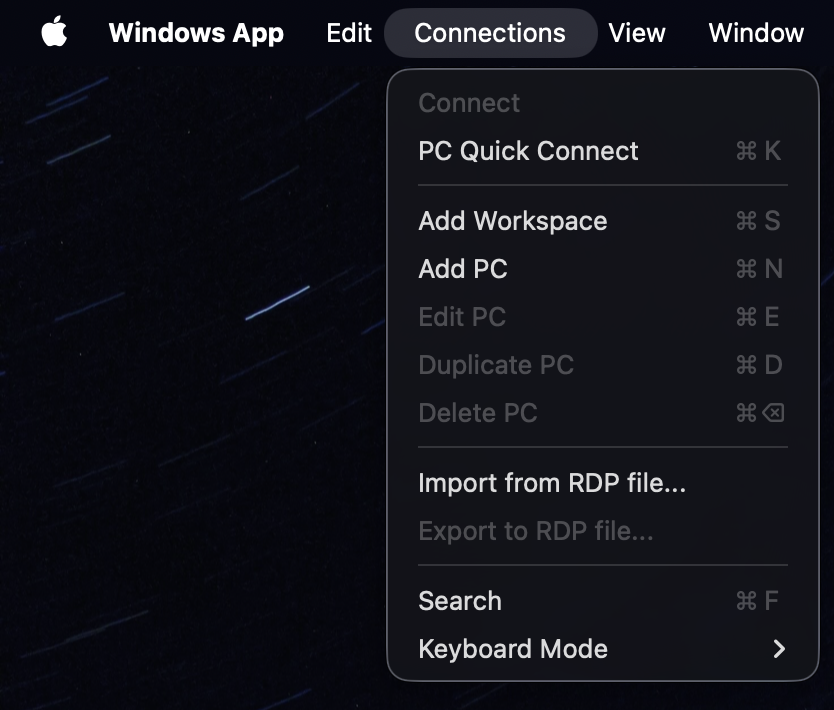
The saved RDP session should then appear under the list of Saved PCs, and should prompt for web login as it would on Windows.
You may need to configure the RD Gateway under Windows App, as well. In Windows App, open the Settings (Command+,), and under Gateways, add the RIT RD Gateway:
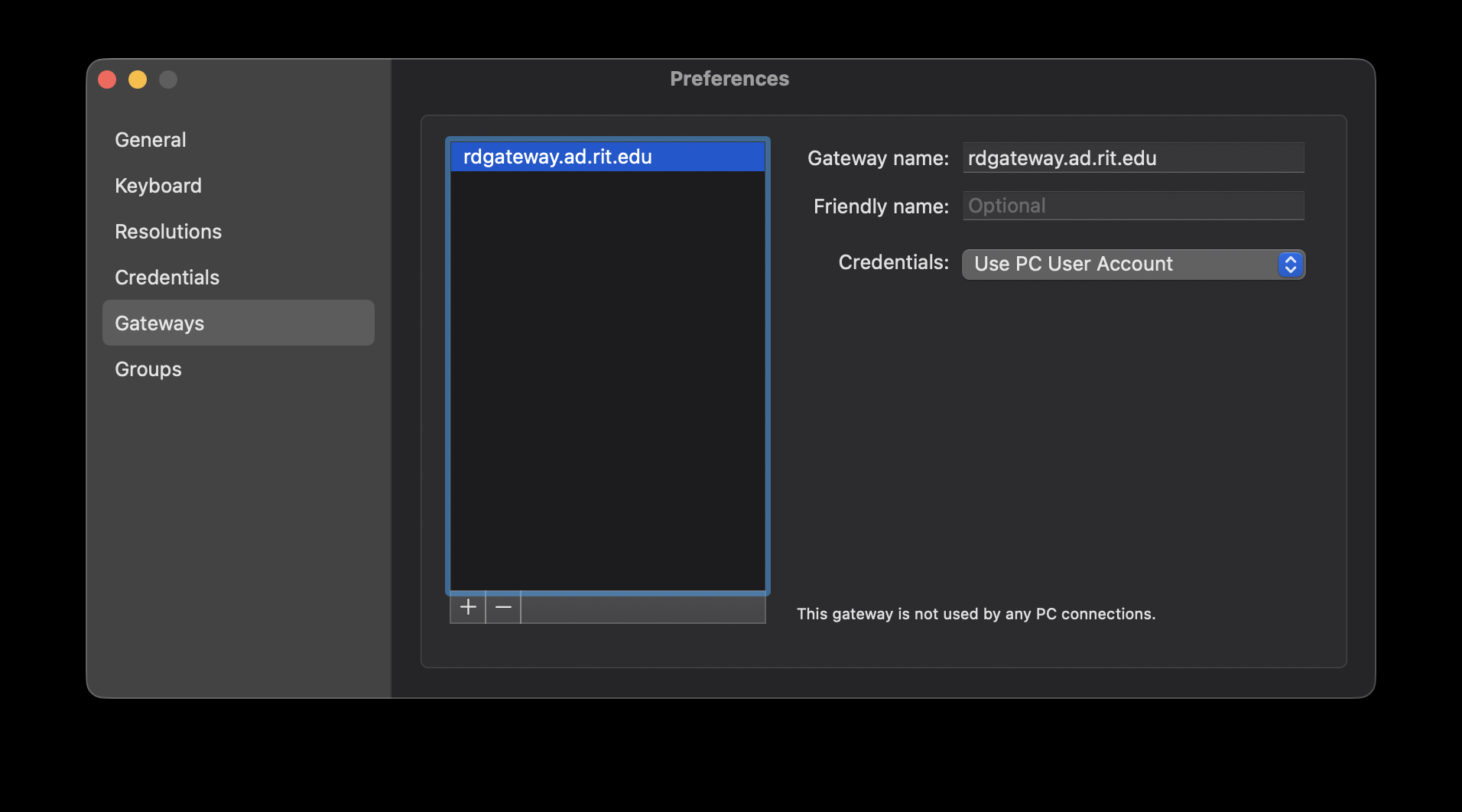
Once imported, the log in process will be the same as what is described in the instructions for the Windows Remote Desktop connection.