
Installing Software from RIT Company Portal
All department managed Windows 11 workstations and PCs have been provisioned with Microsoft's Intune Company Portal, allowing users to self-install packaged software from their own user account without needing administrative privileges.
Some licensed software is not available for end-users to install on their own. Please reach out to your system administrator for assistance if you cannot find a RIT-licensed software package in Company Portal.
When launching Company Portal, the platform may prompt you to login with your RIT affiliated account. If you are logged in with an account that has Company Portal permission, you should be logged in automatically. If it appears, the sign-in button may prompt the automatic login if it did not work when the program was launched.
Install New Software
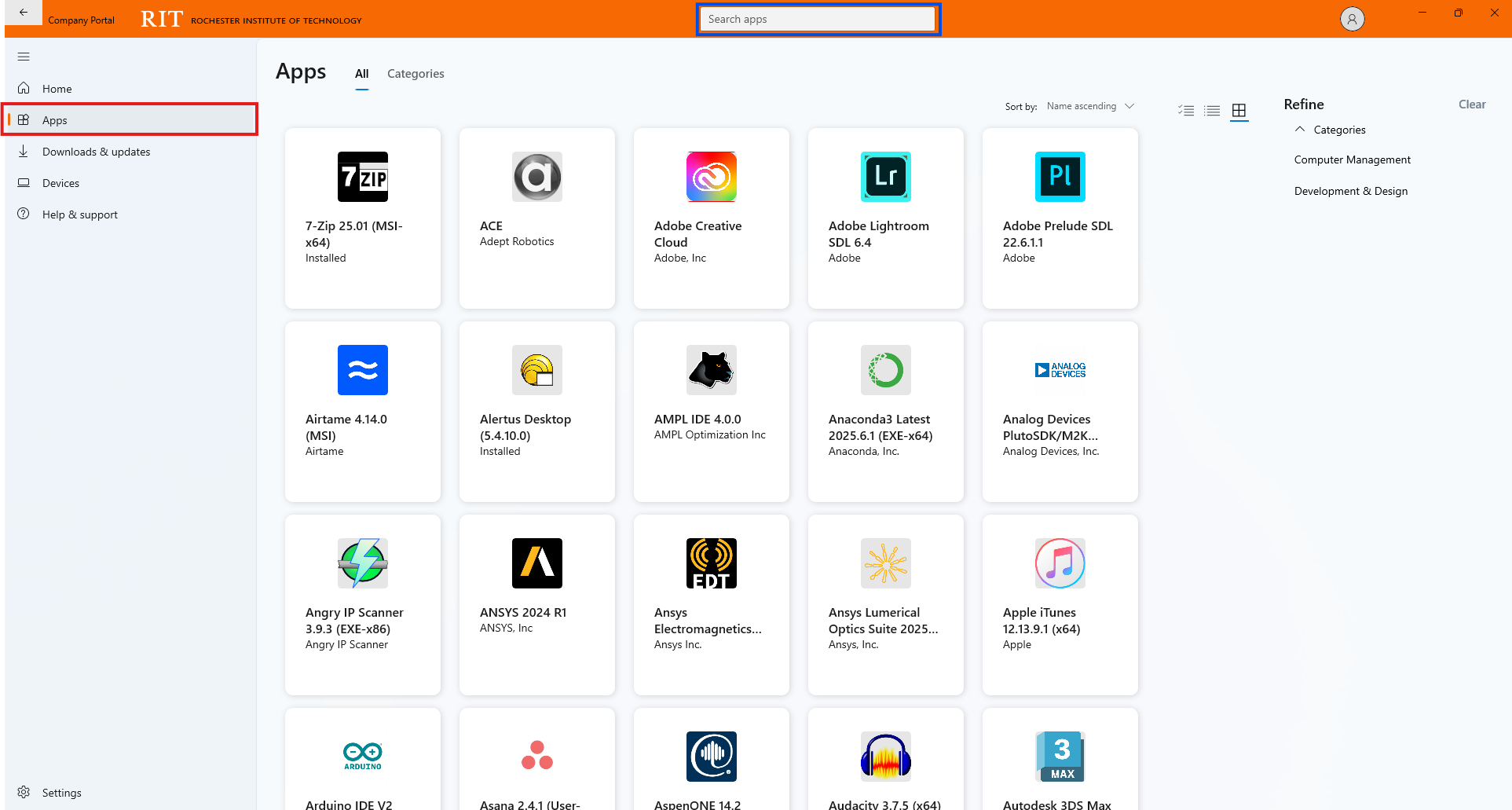
Select Apps from the sidebar to view a selectable grid of all applications your account has permission to install. You can also use the search bar to search for programs directly.
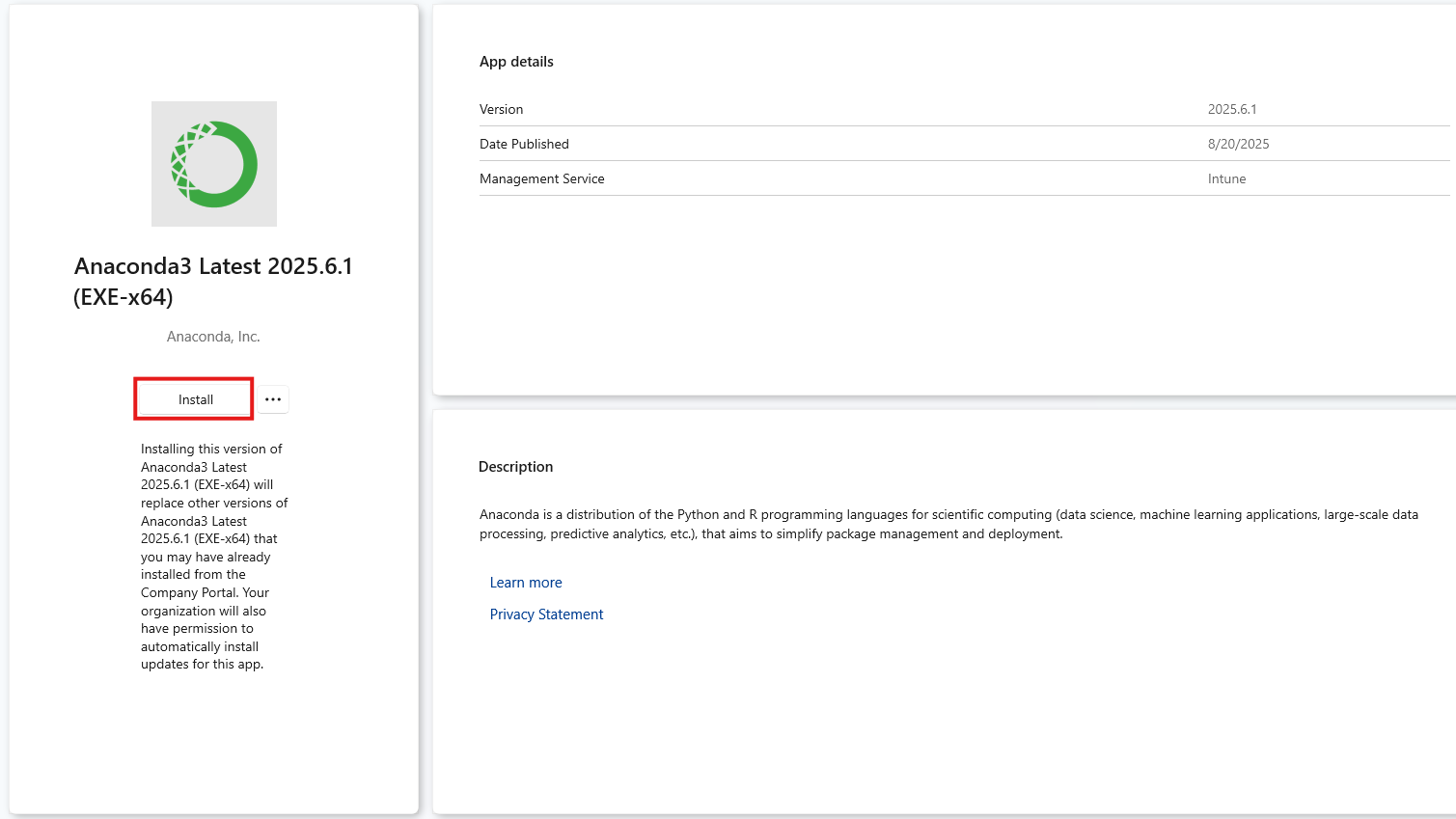
After selecting an application for installation, press the Install button to begin installing the program. Before the program begins to install, Company Portal may attempt to sync your device. Let this run and the program should automatically begin installing after the sync completes.
Do not log out or turn off the machine until you confirm the program is listed as installed under the Downloads & Updates tab.
View Installed Software
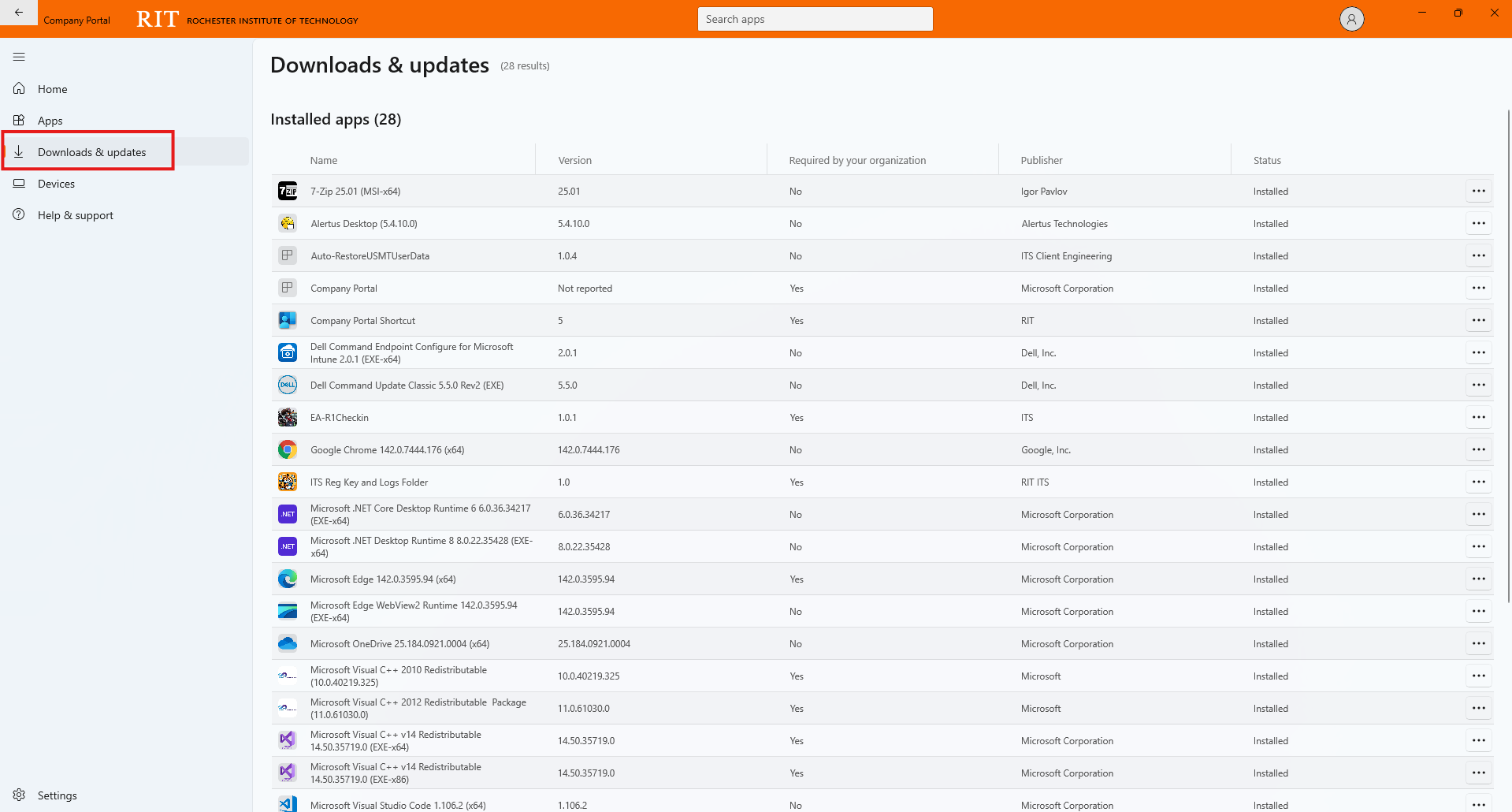
After commencing an installation, it will appear as installing under the Downloads & updates tab. It may show as syncing before it begins installing.
After the installation has completed it will appear as installed under the Installed Apps list and in your Start Menu.